
Remote support
If I can visit you, I will. Sometimes I need to be on site to make physical installations, or get a better assessment of your technical situation.
Otherwise, remote screen sharing is my tool of choice. This allows me to see your screen, control your Mac and make any changes that you are comfortable with.
The application I use is called Teamviewer. Once you install and run it, I will send you a request to connect. Then we’ll get going.
Once you quit TeamViewer, the connection is closed completely. I’ll no longer have any access to your computer. You’ll need to restart the Teamviewer app and accept a new connection prompt for us to reconnect.
Teamviewer is secure, and free for you to use. You don’t need to sign up for an account. It doesn’t run in the background and there’s no risk that someone else can take over your computer without your knowledge or permission.
If we have not connected before, or you need to re-install Teamviewer, please follow the instructions below. (Note: Teamviewer will not allow remote control to an iPhone or iPad – there are other ways we can do that.)
There are a few steps here, but we only have to run this setup the first time we connect. After that, you’ll have the app ready to go. If you get stuck, I’ll help you over the phone to get it all working.

Click the big friendly blue heading above. You’ll see a new window open up with my face at the top (that’s me!) which says “Loading Teamviewer Now“:
PS Have an older Mac? You might need to download a different version. Click the following download links if you have MacOS 10.8 (Mountain Lion) to 10.10 (Yosemite) or MacOS 10.11 (El Capitan) to 10.15 (Catalina). Click on the Apple logo at the top left of your screen and click About This Mac if you’re not sure what MacOS you have.
This page may take a minute to start downloading your file – be patient!
When Teamviewer starts downloading, you’ll see it appear in your download icon (usually at the top right of the window, it looks like an arrow pointing down). Click that icon, and when you see a file called “TeamViewerQS.zip“, we’re ready to run it.
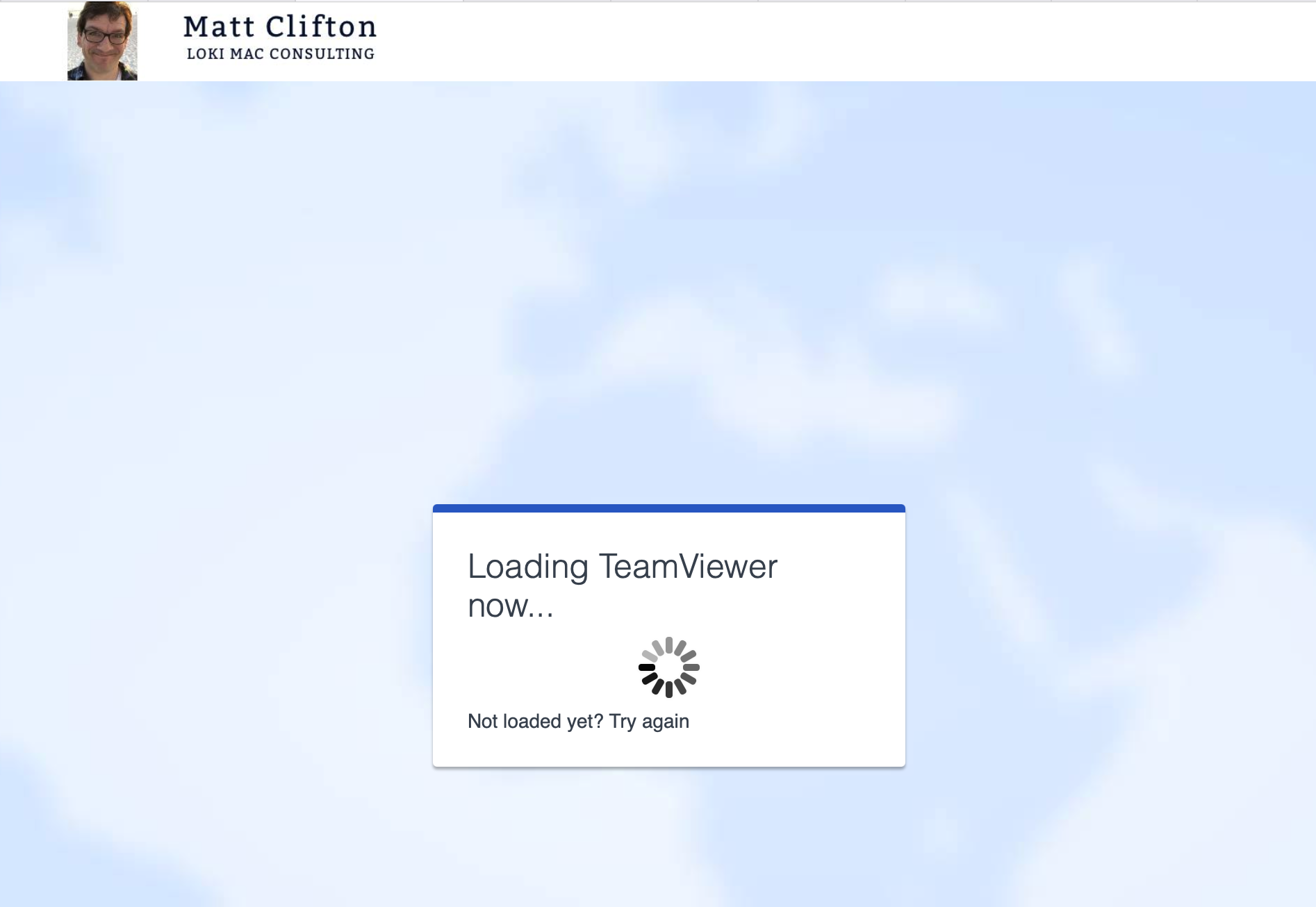
The screen above may appear for a minute before downloading the application

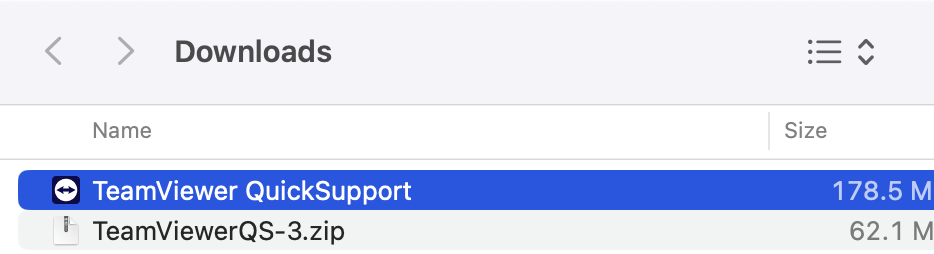
The downloaded file will look like this

Double-click the TeamViewerQS.zip file, and it’ll open up and show you the full application called TeamViewer QuickSupport. Again, double-click this file to run it.
On a Mac, you will have to confirm that you want to open this file – click Open when this question appears.
The TeamViewer app will open – it will look like the window to the right. You’ll see my name at the top of the window, and your name with a code at the bottom. I should be able to see you appear in my client list, but if not, tell me the session code and we can connect.
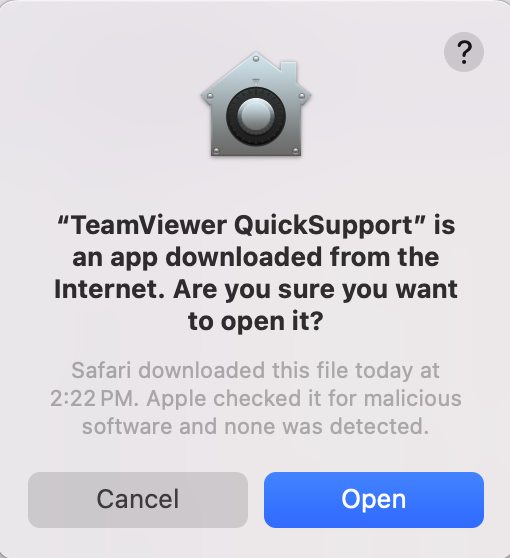
Apple wants to make sure you really want to run this app.
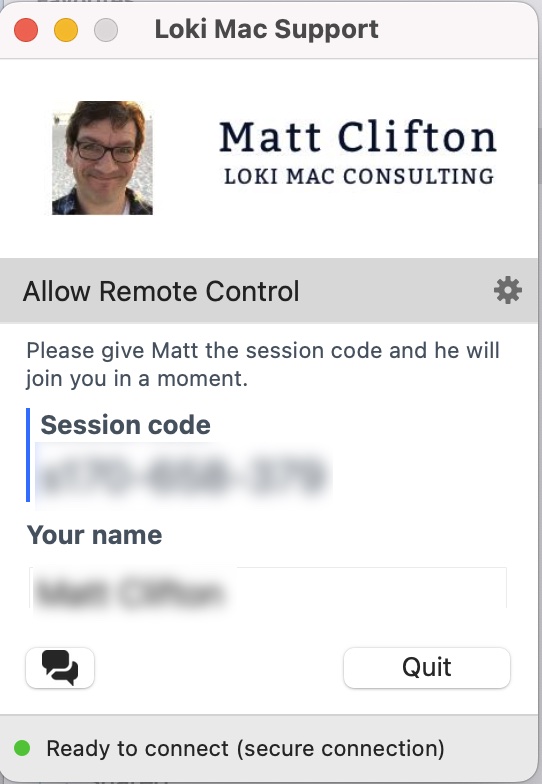
We’re ready to connect!

Finally, on a Mac, you will need to give me system permissions to view your screen and move your mouse cursor around to give assistance.
On its first run, Teamviewer should prompt you to do this with a window that contains three sections with “Set up…” prompts.
We’re going to set up the first two access levels. If you don’t see this window appear, go to the Help menu at the top left of the screen and click Check System Access.
Click “Set up Screen Recording” and your System Settings window will open to the appropriate preference panel. It will look like this. Click the button next to “Teamviewer Quicksupport” to turn it on (blue). You will be asked to confirm with TouchID or your computer password.
A window may appear with “Teamviewer will have to quit and reopen“. You can click “Later“.
Next, go back to the “Set up your Mac for Teamviewer” window, and click the second option, “Set Up Accessibility“. Again, System Settings will pop up and you’ll need to turn on Teamviewer Quicksupport in that window.
You have now set up the correct permissions and we’re ready to connect!
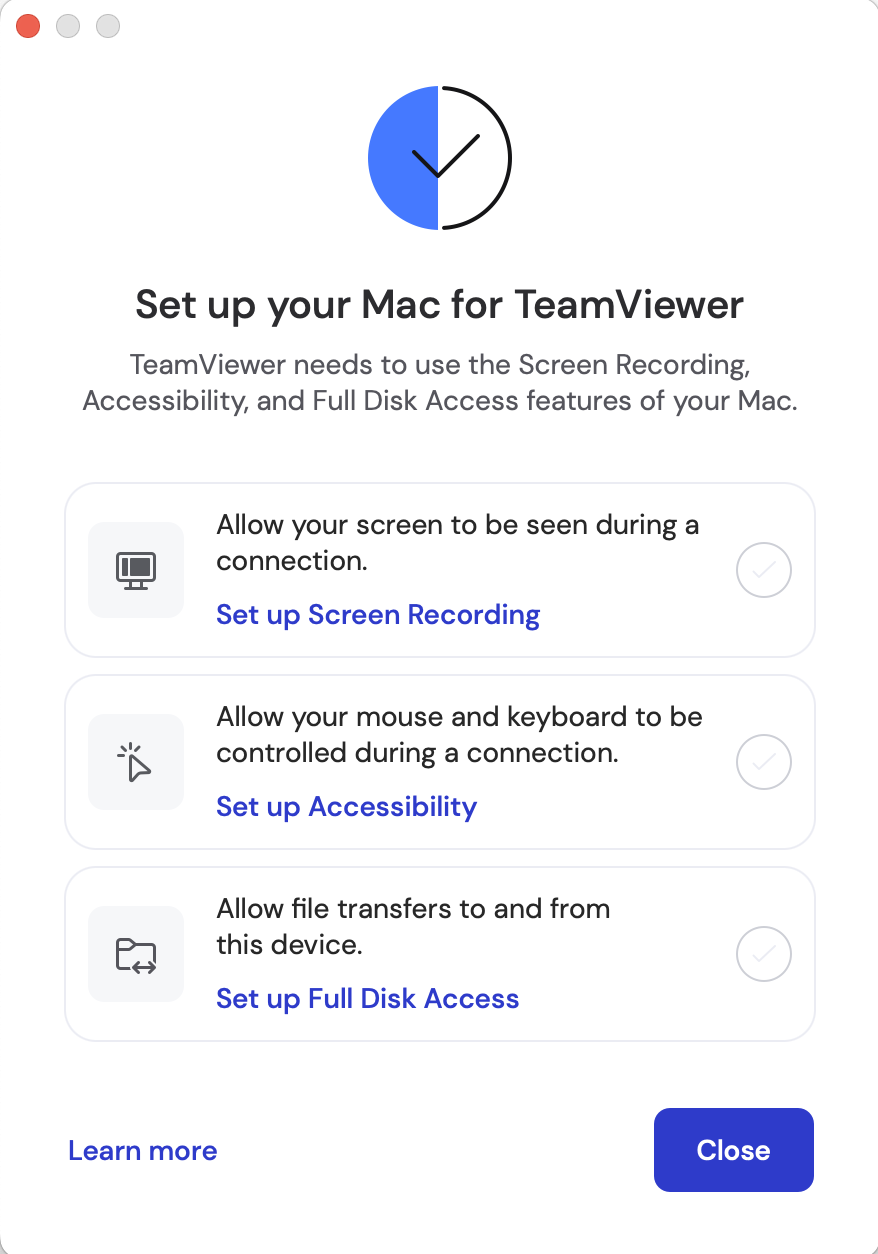
We’ll need to turn on the first two options on your Mac.

In System Settings, make sure the TeamViewer QuickSupport items get turned on.